DJI Mavic 2 Pro и Zoom инструкция на английском - страница 27
                                                                                                                                                                                                                                                       Mavic 2 Pro/Zoom User Manual
ActiveTrack 2.0
ActiveTrack 2.0 allows you to select an object on your mobile device screen. The aircraft adjusts its flight
to track the subject. No external tracking device is required. Mavic 2 Pro/Zoom can automatically identify
up to 16 objects and uses different tracking strategies to track people, vehicles, and boats.
Using ActiveTrack 2.0
Ensure that the aircraft is in P-mode and that the Intelligent Flight Battery is sufficiently charged. Follow
the steps below to use ActiveTrack 2.0:
1. Take off and hover at least 6.6 ft (2 m) above the ground.
                                                                                                                                                      2m
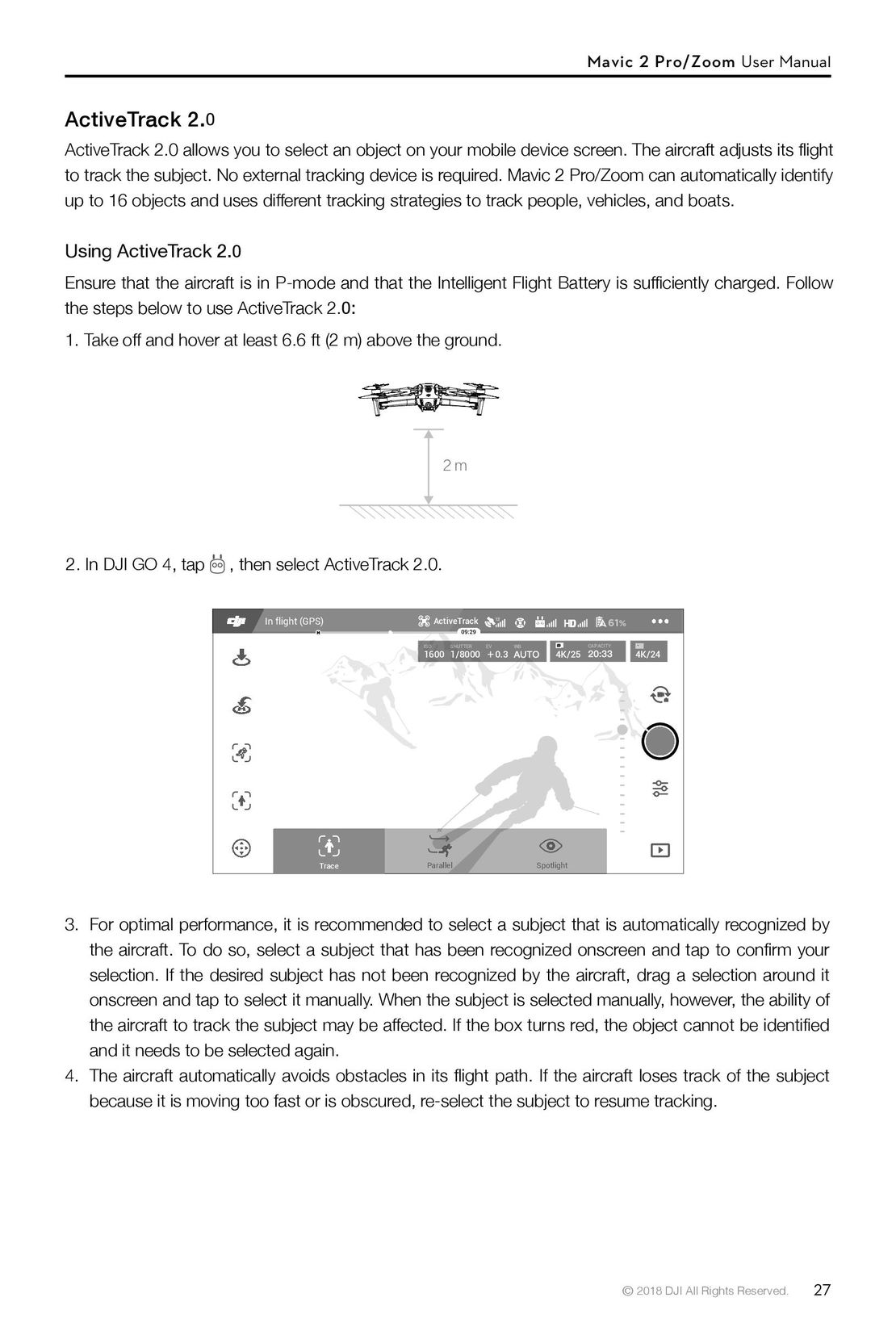
2. In DJI GO 4, tap   , then select ActiveTrack 2.0.
                                          In flight (GPS)                                                                                            ActiveTrack                                          12                             61%
                                                                                                                                                               09:29
                                                                                                                                                 ISO        SHUTTER       EV                                      WB                            CAPACITY
                                                                                          1600                                                          1/8000               0.3                                            4K/25                            4K/24
                                                                  Trace                       Parallel                                                                                                                  Spotlight
3. For optimal performance, it is recommended to select a subject that is automatically recognized by
   the aircraft. To do so, select a subject that has been recognized onscreen and tap to confirm your
   selection. If the desired subject has not been recognized by the aircraft, drag a selection around it
   onscreen and tap to select it manually. When the subject is selected manually, however, the ability of
   the aircraft to track the subject may be affected. If the box turns red, the object cannot be identified
   and it needs to be selected again.
4. The aircraft automatically avoids obstacles in its flight path. If the aircraft loses track of the subject
   because it is moving too fast or is obscured, re-select the subject to resume tracking.
                                                                                                                                                                                                                                                         © 2018 DJI All Rights Reserved.    27
 22
22 23
23 24
24 25
25 26
26 28
28 29
29 30
30 31
31 32
32 DJI Phantom 3 Standard инструкция на русском
 DJI Phantom 4 Pro Plus инструкция на русском
 DJI Phantom 3 Advanced инструкция на русском
 Syma X54HW X54HC инструкция на русском
 Syma X5UW инструкция на русском
 DJI Mavic Pro и Pro Platinum инструкция на русском
- Using This Manual
- Legend
- Read Before the First Flight
- Video Tutorials
- Download the DJI GO 4 App
- Download DJI Assistant 2
- Product Profile
- Introduction
- Preparing the Mavic 2 Pro/Zoom
- Preparing the Remote Controller
- Aircraft Diagram
- Activation
- Aircraft
- Flight Modes
- Aircraft LEDs and Status Indicator
- Return to Home
- Vision Systems and Infrared Sensing Systems
- Intelligent Flight Modes
- Advanced Pilot Assistance Systems
- Flight Recorder
- Attaching and Detaching the Propellers
- Intelligent Flight Battery
- Gimbal and Camera
- Remote Controller
- Using the Remote Controller
- Dual Remote Controller Mode (Coming soon)
- Linking the Remote Controller
- DJI GO 4 App
- Equipment
- Editor
- SkyPixel
- Me
- Flight
- Flight Environment Requirements
- Flight Limits and GEO Zones
- Pre-Flight Checklist
- Auto Takeoff/Landing
- Starting/Stopping the Motors
- Test Flight
- Appendix
- Specifications
- Calibrating the Compass
- Firmware Updates
- Remote Controller LCD Screen Menu Information