DJI Mavic 2 Pro и Zoom инструкция на английском - страница 49
                    DJI GO 4 App
Use this app to control the gimbal, camera, and other aircraft functions. The app features Equipment,
Editor, SkyPixel, and Me sections, which are used for configuring your aircraft, and editing and sharing
your photos and videos with others.
Equipment
Device Menu
If it is not already selected, select Mavic 2 Pro/Zoom from the device menu in the top left corner of the
screen.
Function Menu
Tap   in the top right corner of the screen to open the Function menu. The menu has five options:
Scan QR Code: Scan a QR code to connect to an aircraft.
Academy: Use the flight simulator, watch tutorials, and read the product manuals.
Flight Records: Access all your flight records.
GEO Zones: Read information about GEO Zones.
Find My Drone: Get the map coordinates of your aircraft’s last-recorded location and command the
aircraft to blink its LEDs and make a beeping sound.
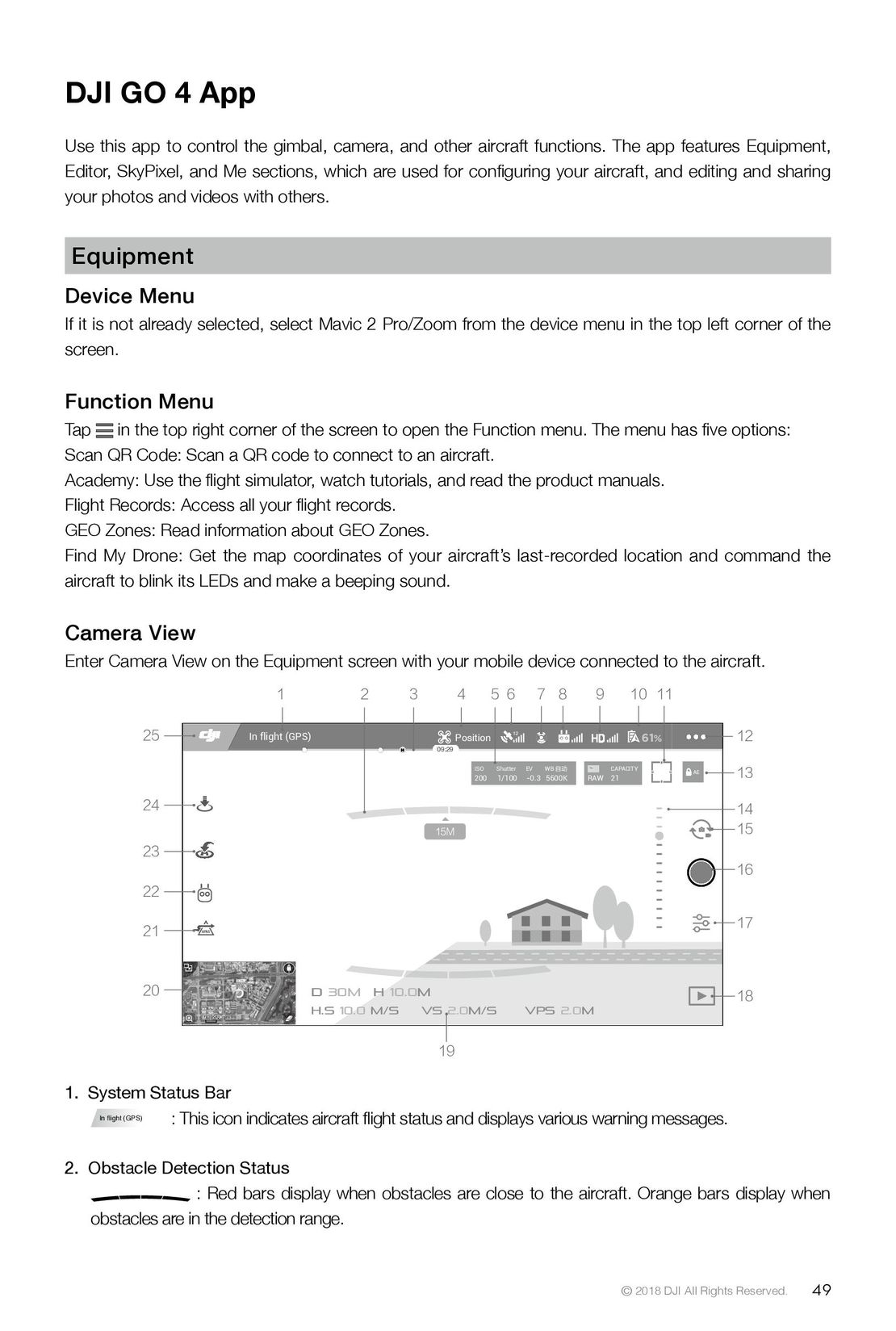
Camera View
Enter Camera View on the Equipment screen with your mobile device connected to the aircraft.
                                                                                   1                    2       3                                    4                5 6                                     7  8        9           10          11
                          25                                                     In flight (GPS)                                                     Position                                         12                                        61%                             12
                                                                                                                                               09:29
                                                                                                                                                                  ISO     Shutter                          EV    WB 自动                 CAPACITY2001/100-0.35600KRAW21    AE     13
                          24                                                                                                                                                                                                                                                    14
                                                                                                                                                                                                                                                                                15
                          23
                                                                                                                                                                                                                                                                                16
                          22
                          21                                         APAS                                                                                                                                                                                                       17
                          20                                                                     D 30M     H  10.0M                                                                                                                                                             18
                                                                                                 H.S 10.0  M/S       VS   2.0M/S                                                                         VPS      2.0M
                                                                                                                    19
1.  System Status Bar
          In flight (GPS)    : This icon indicates aircraft flight status and displays various warning messages.
2.  Obstacle Detection Status
                                : Red bars display when obstacles are close to the aircraft. Orange bars display when
   obstacles are in the detection range.
                                                                                                                                                                                                                                     © 2018 DJI All Rights Reserved.                     49
 44
44 45
45 46
46 47
47 48
48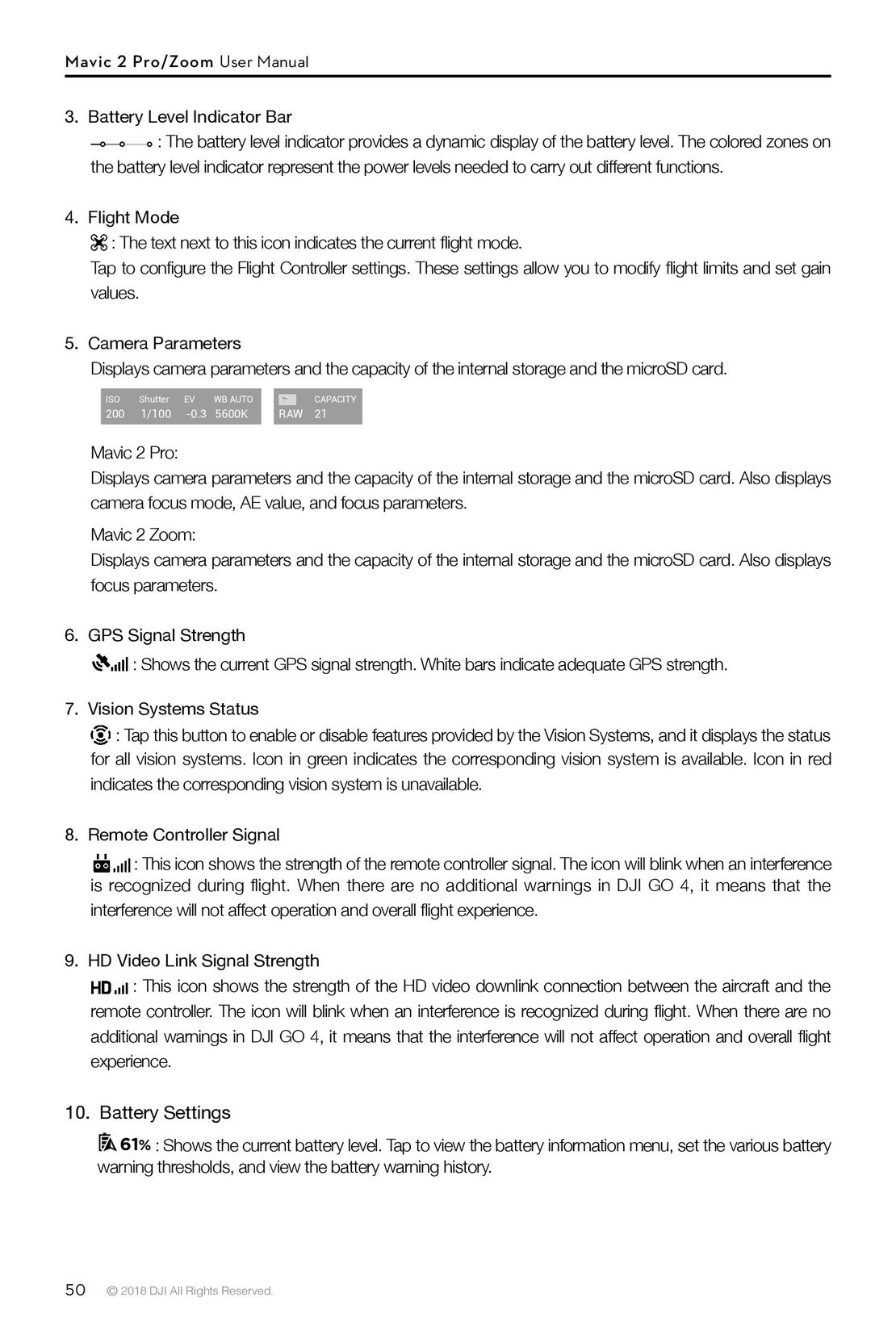 50
50 51
51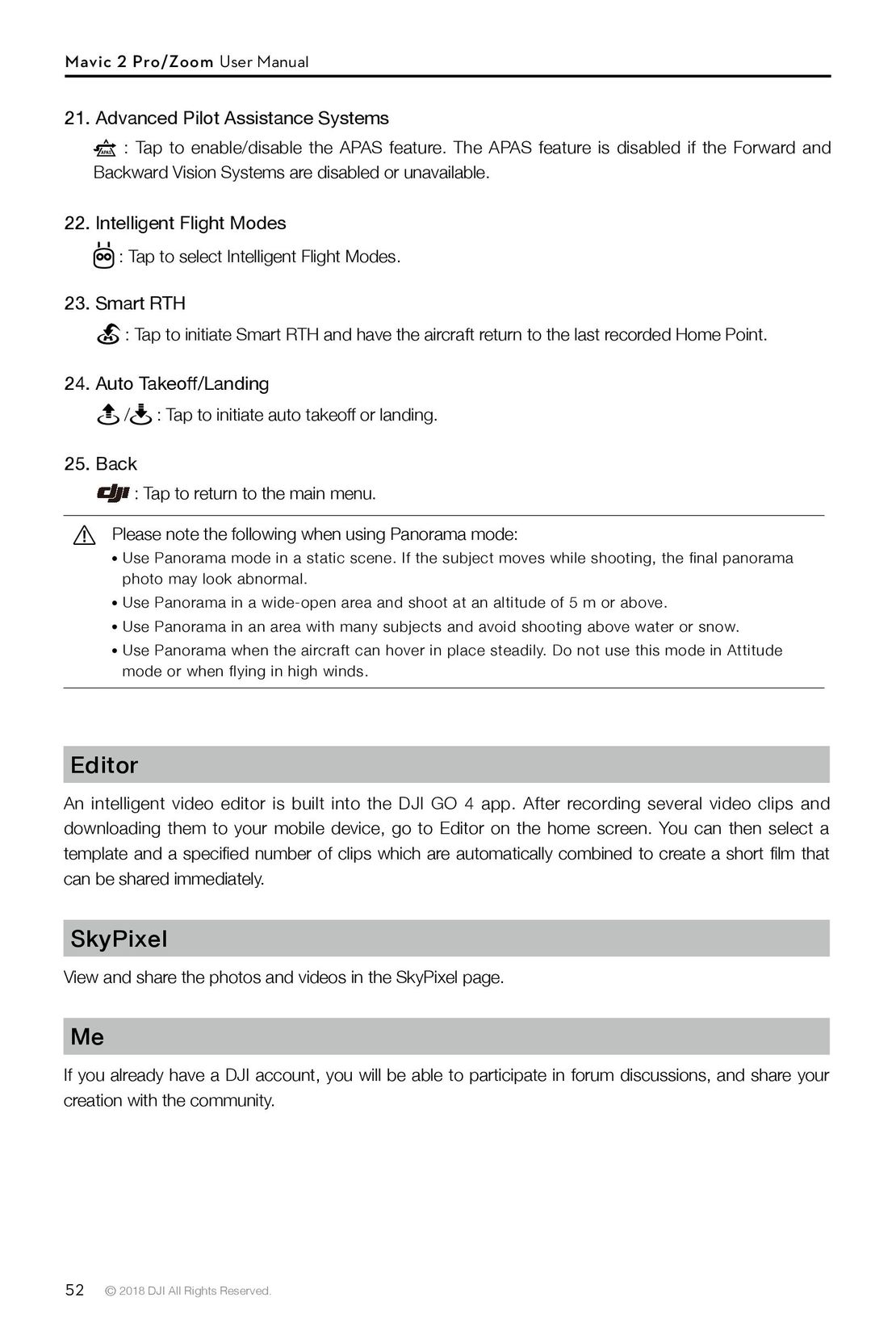 52
52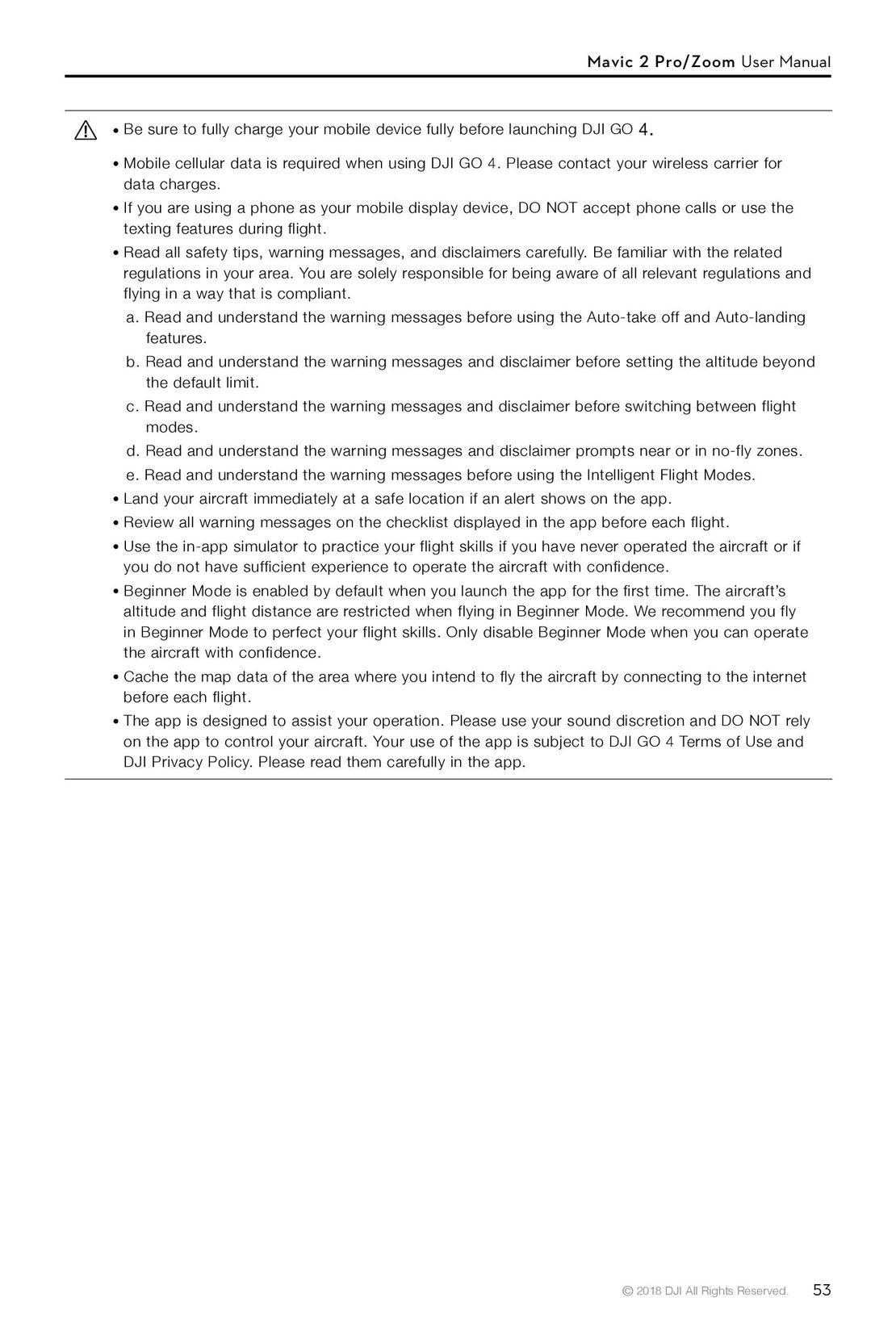 53
53 54
54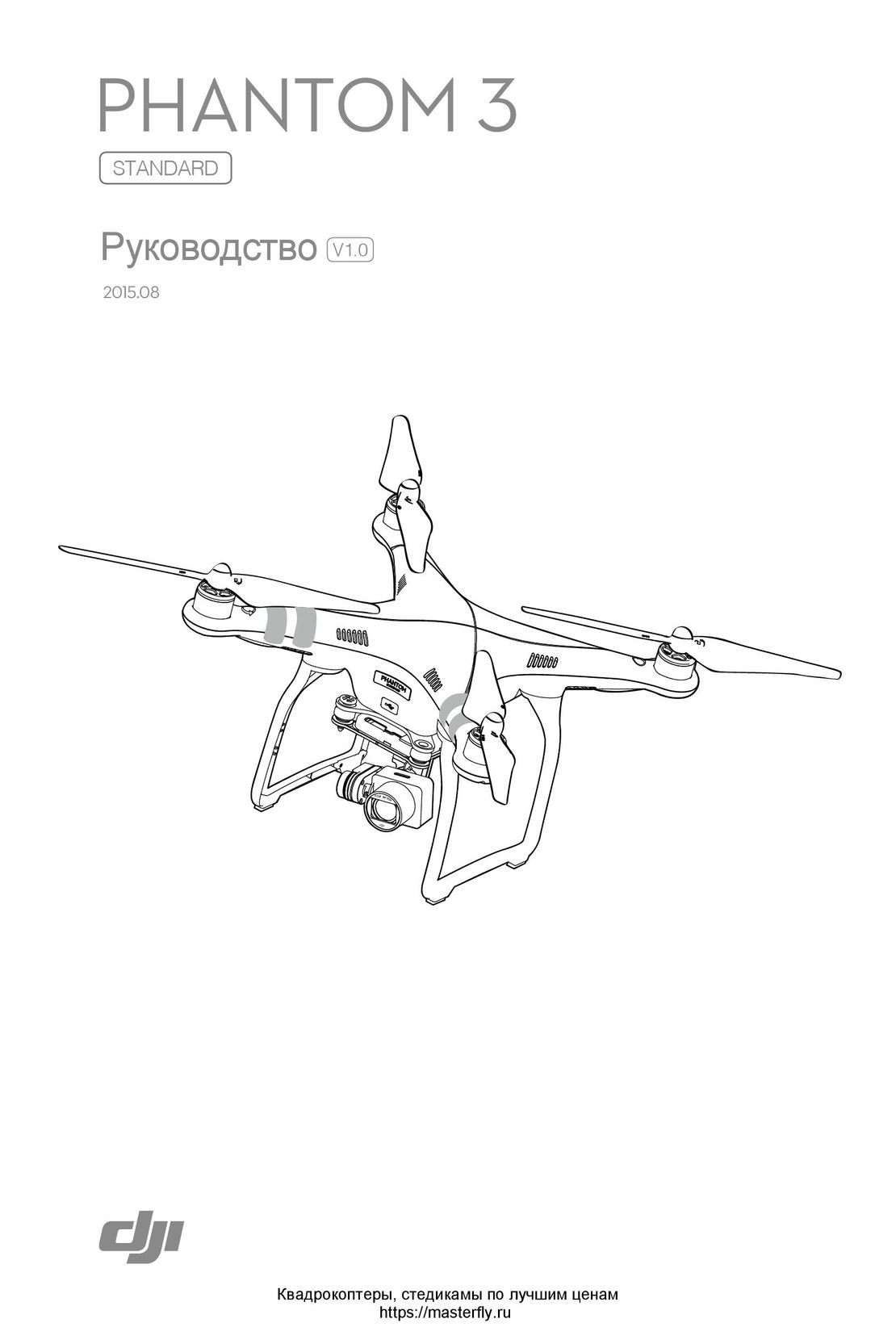 DJI Phantom 3 Standard инструкция на русском
 DJI Phantom 4 Pro Plus инструкция на русском
 DJI Phantom 3 Advanced инструкция на русском
 Syma X54HW X54HC инструкция на русском
 Syma X5UW инструкция на русском
 DJI Mavic Pro и Pro Platinum инструкция на русском
- Using This Manual
- Legend
- Read Before the First Flight
- Video Tutorials
- Download the DJI GO 4 App
- Download DJI Assistant 2
- Product Profile
- Introduction
- Preparing the Mavic 2 Pro/Zoom
- Preparing the Remote Controller
- Aircraft Diagram
- Activation
- Aircraft
- Flight Modes
- Aircraft LEDs and Status Indicator
- Return to Home
- Vision Systems and Infrared Sensing Systems
- Intelligent Flight Modes
- Advanced Pilot Assistance Systems
- Flight Recorder
- Attaching and Detaching the Propellers
- Intelligent Flight Battery
- Gimbal and Camera
- Remote Controller
- Using the Remote Controller
- Dual Remote Controller Mode (Coming soon)
- Linking the Remote Controller
- DJI GO 4 App
- Equipment
- Editor
- SkyPixel
- Me
- Flight
- Flight Environment Requirements
- Flight Limits and GEO Zones
- Pre-Flight Checklist
- Auto Takeoff/Landing
- Starting/Stopping the Motors
- Test Flight
- Appendix
- Specifications
- Calibrating the Compass
- Firmware Updates
- Remote Controller LCD Screen Menu Information